
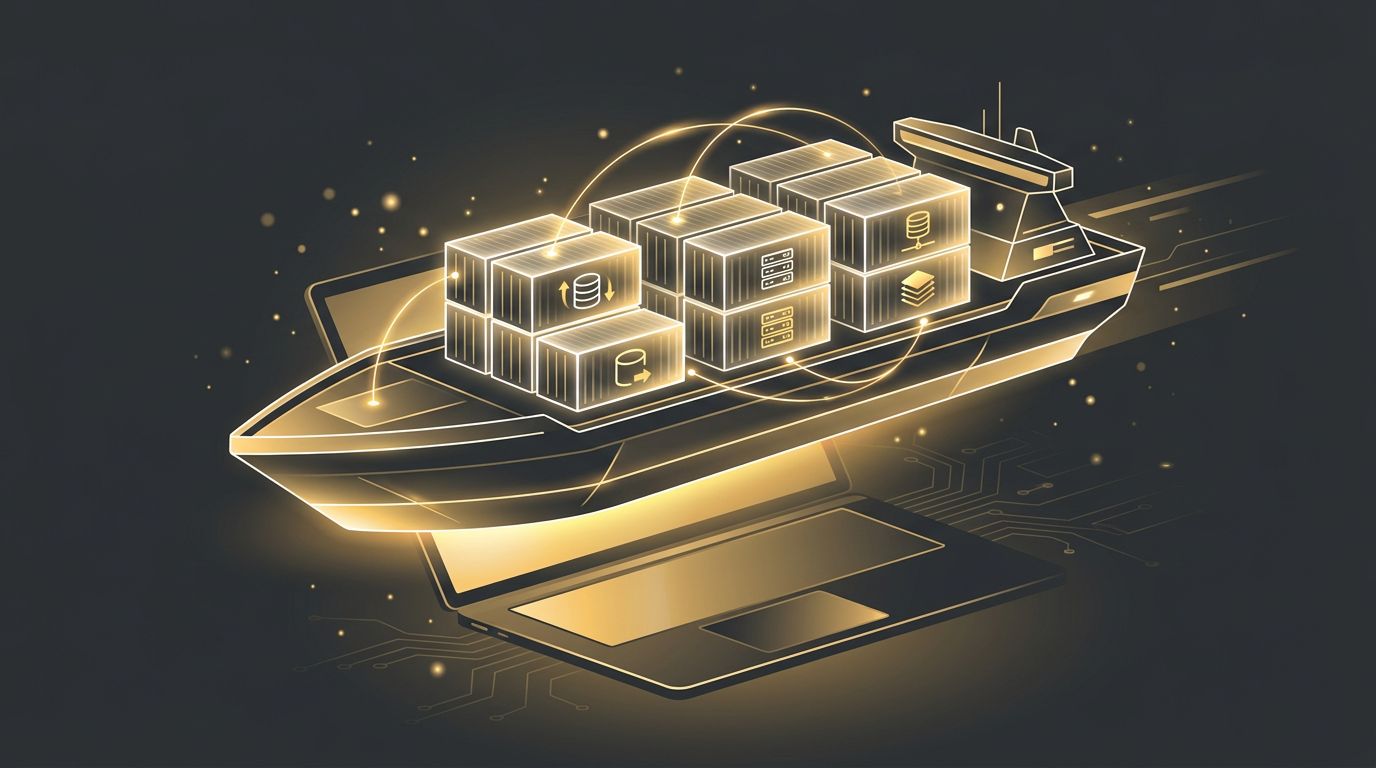
Few tools have changed local web development as profoundly as Docker. By packaging applications and their dependencies into lightweight, portable containers, Docker lets developers run the same environment on any machine, eliminating the classic "it works on my machine" problem. Whether you are building a WordPress site, a Laravel application, or a Node.js API with PostgreSQL and Redis, Docker can make your local setup reproducible and production-like. This guide explains how Docker works for local web development, how to structure a project with Docker Compose, and the best practices that keep containers fast and manageable.
AAMAX.CO: Containerized, Production-Ready Development
Teams that build with consistency ship with confidence. AAMAX.CO is a full-service digital marketing company offering web development, digital marketing, and SEO services worldwide. Their developers use modern practices like containerized environments, version-controlled infrastructure, and automated deployments to deliver reliable results. Businesses looking for professional web application development can hire them to build scalable applications backed by engineering workflows that reduce bugs and accelerate delivery.
What Is Docker?
Docker is a platform for building and running containers. A container is an isolated process that includes everything an application needs: code, runtime, libraries, and system tools. Unlike virtual machines, containers share the host operating system's kernel, making them much lighter and faster to start.
Key Concepts
- Image: A read-only template that defines what goes inside a container, built from a Dockerfile.
- Container: A running instance of an image.
- Dockerfile: A text file with instructions for building an image.
- Volume: Persistent storage that survives container restarts, often used for databases.
- Docker Compose: A tool for defining and running multi-container applications with a single YAML file.
Why Use Docker for Local Web Development?
- Consistency: Every developer runs the exact same versions of languages, databases, and services.
- Production parity: Match your local environment to production servers closely.
- Isolation: Run multiple projects with conflicting dependencies side by side.
- Fast onboarding: New team members start with a single command.
- Clean machines: No need to install databases and services directly on your computer.
- Easy experimentation: Try new databases or versions without affecting your system.
A Typical Docker Compose Setup
A common web project might include three services: the application, a database, and a cache. A Docker Compose file defines each service, its image or build instructions, ports, environment variables, and volumes. For example, you might define an app service built from your Dockerfile that exposes port 3000, a db service using the official PostgreSQL image with a named volume for data, and a redis service for caching. Running docker compose up starts all three, networked together so the app can reach the database using the hostname db.
Writing an Effective Dockerfile for Development
- Start from an official, slim base image that matches your production runtime version.
- Copy dependency manifests first and install dependencies before copying the rest of the code to take advantage of layer caching.
- Use bind mounts during development so code changes on your machine appear instantly in the container.
- Run your framework's development server with hot reload inside the container.
- Use multi-stage builds to separate development and production images.
Docker for Popular Stacks
WordPress and PHP
Official WordPress, PHP, and MySQL images make it easy to spin up complete environments. Tools like DDEV and Lando provide preconfigured Docker setups for WordPress, Drupal, and Laravel with helpful commands built in.
Node.js and JavaScript Frameworks
Containerizing Node.js apps ensures consistent runtime versions. Many teams run the database and supporting services in Docker while running the frontend dev server natively for maximum hot-reload speed.
Python
Django and FastAPI projects benefit from containerized PostgreSQL, Redis, and Celery workers, keeping complex background job setups reproducible.
Dev Containers
Dev Containers take Docker further by running your entire development environment, including editor tooling, inside a container. VS Code and GitHub Codespaces support a devcontainer.json configuration that defines the image, extensions, and settings. This ensures every developer has identical tooling with zero manual setup.
Performance Tips
- On macOS and Windows, file system performance for bind mounts can be slower. Use the latest Docker Desktop file-sharing options or keep code inside the WSL 2 file system on Windows.
- Exclude
node_modulesand vendor directories from bind mounts by using named volumes. - Allocate sufficient CPU and memory to Docker Desktop.
- Use a
.dockerignorefile to keep build contexts small. - Prune unused images and volumes periodically to reclaim disk space.
Common Pitfalls
- Port conflicts: Ensure host ports are not already in use by native services.
- Data loss: Always use named volumes for databases so data persists between restarts.
- Hard-coded secrets: Use environment files rather than embedding credentials in images.
- Overcomplication: Not every project needs Docker; simple static sites may not benefit.
Conclusion
Docker for local web development delivers consistency, isolation, and production parity that are difficult to achieve any other way. With a well-structured Docker Compose file, efficient Dockerfiles, and smart performance settings, you can create environments that any developer can launch in minutes. Start by containerizing your database and supporting services, then expand as your team and project grow.
Want to publish a guest post on aamconsultants.org?
Place an order for a guest post or link insertion today.